What are Community Chats
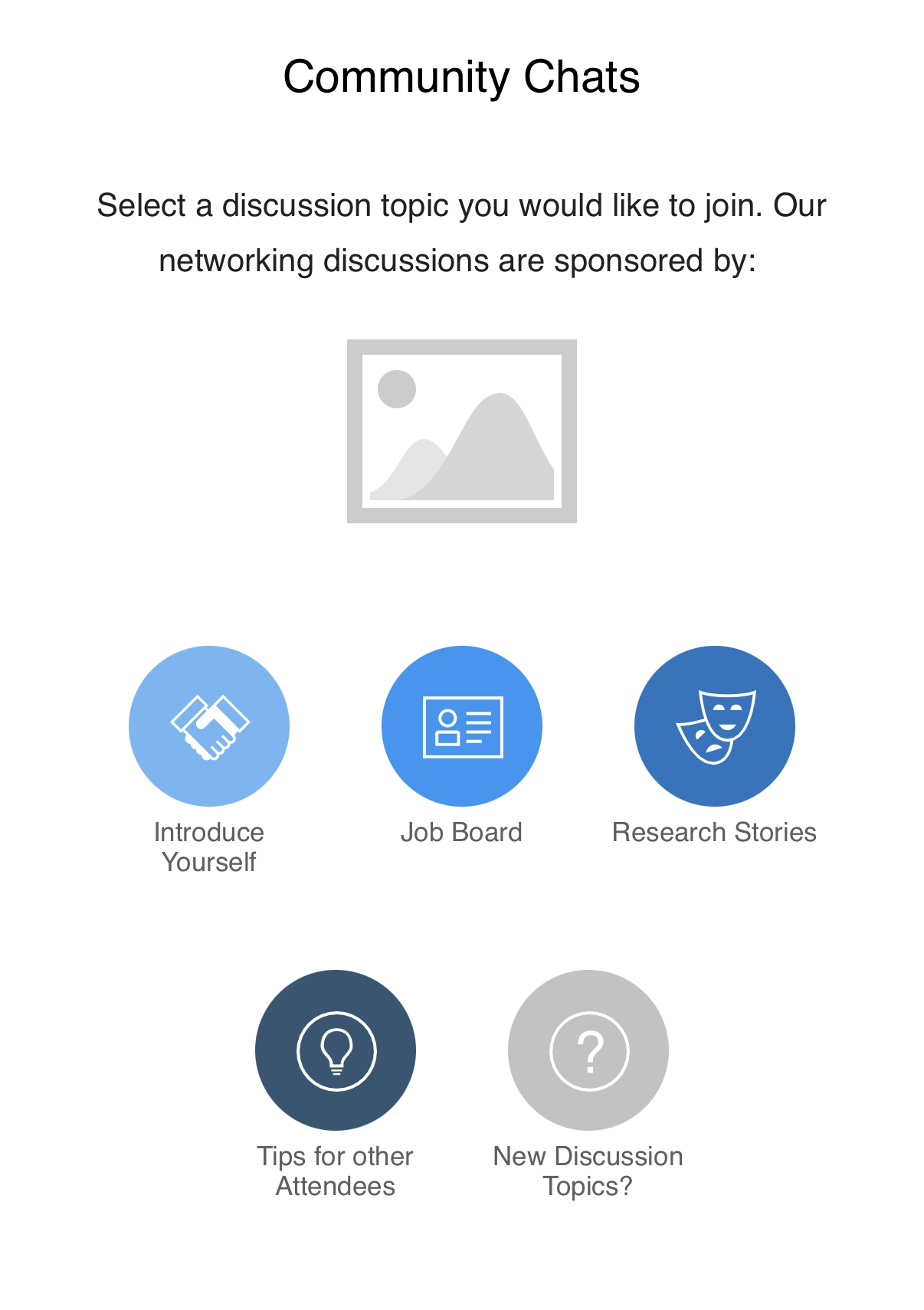
Each EventPilot project has a default set of public discussion boards for logged in users to network around a specific topic. The default topics are:
- Introduce Yourself
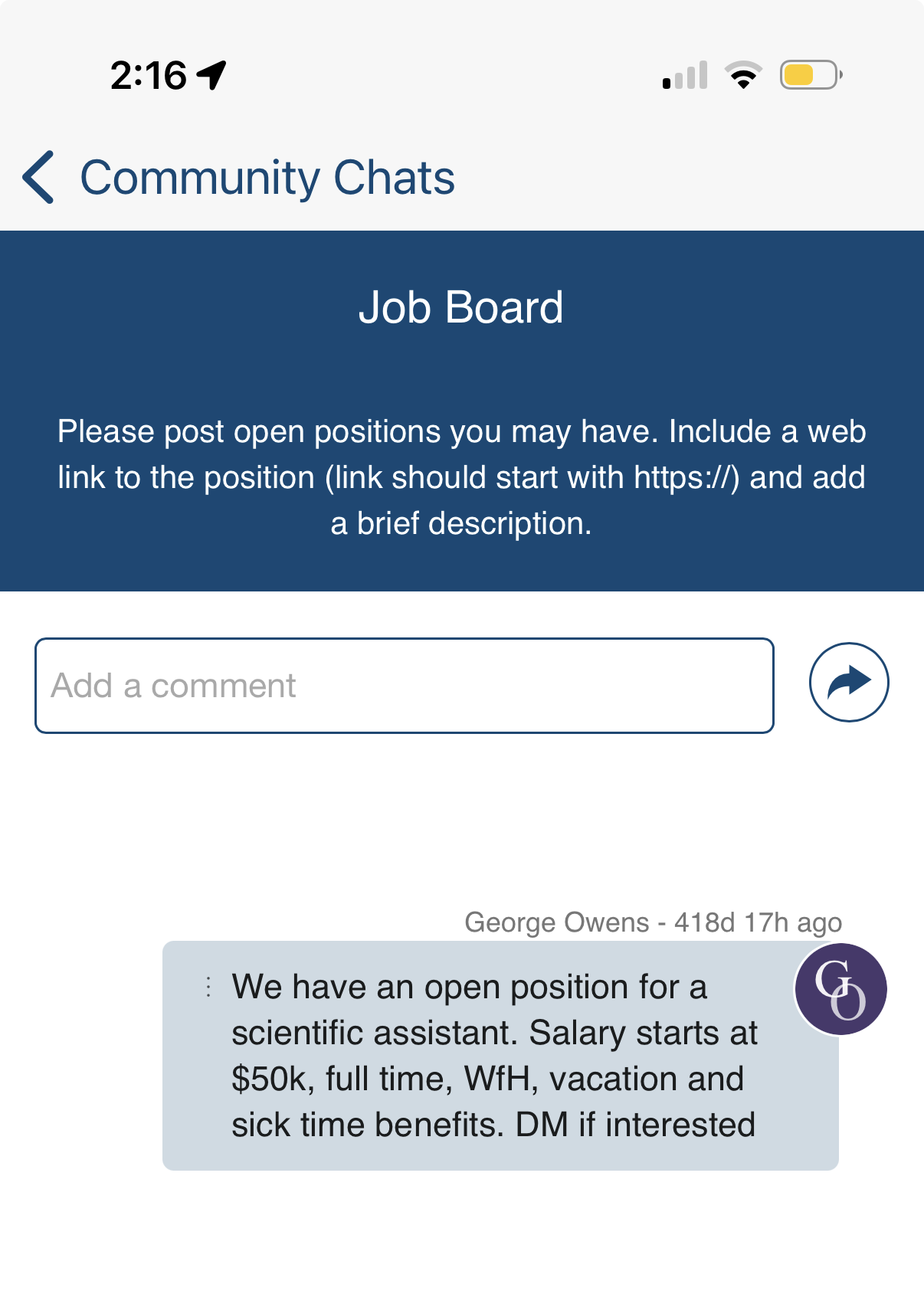
- Job Board (from experience, this is the most used discussion board)
- Research Stories
- Tips for other Attendees
- New Discussion Topics?
A landing page called "Community Chats" guides users to those 5 default topics. The landing page includes a placeholder for a sponsor image. Each individual discussion board includes a paragraph option for you to briefly explain what the board is about.
How to Edit Existing Chat Topics
- In the App Builder, navigate to Design > Custom Views
- Click the pencil button next to any of the following IDs
- chatintro (Introduce Yourself)
- chatjobs (Job Fair)
Tip: including a job board or lab hiring discussion topic is generally the most used discussion topic - chattopics (New Discussion Topics)
FYI: this particular group is designed for users to suggest new chat topics for organizers. It does not allow attendees to create a new custom discussion board. - chatstories (Research Stories)
- chattips (Tips for other Attendees)
- You can update the chat title, if it should be included in the Gobal Search, and add a short description
How to Add a New Chat Topic
Attendees do not create new chat topics. Any new chat topic is created by the event organizer.
- In the App Builder, navigate to Design > Custom Views
- Click the Add View button
- Select Chat Discussion View
- Enter a title and description
- After you created the view, you need to link to it. Either via a tab, a button on your Home Screen, or a button in the Community Chats page.
How to Edit the Community Chats Landing Page
- In the App Builder, navigate to Design > Custom Views
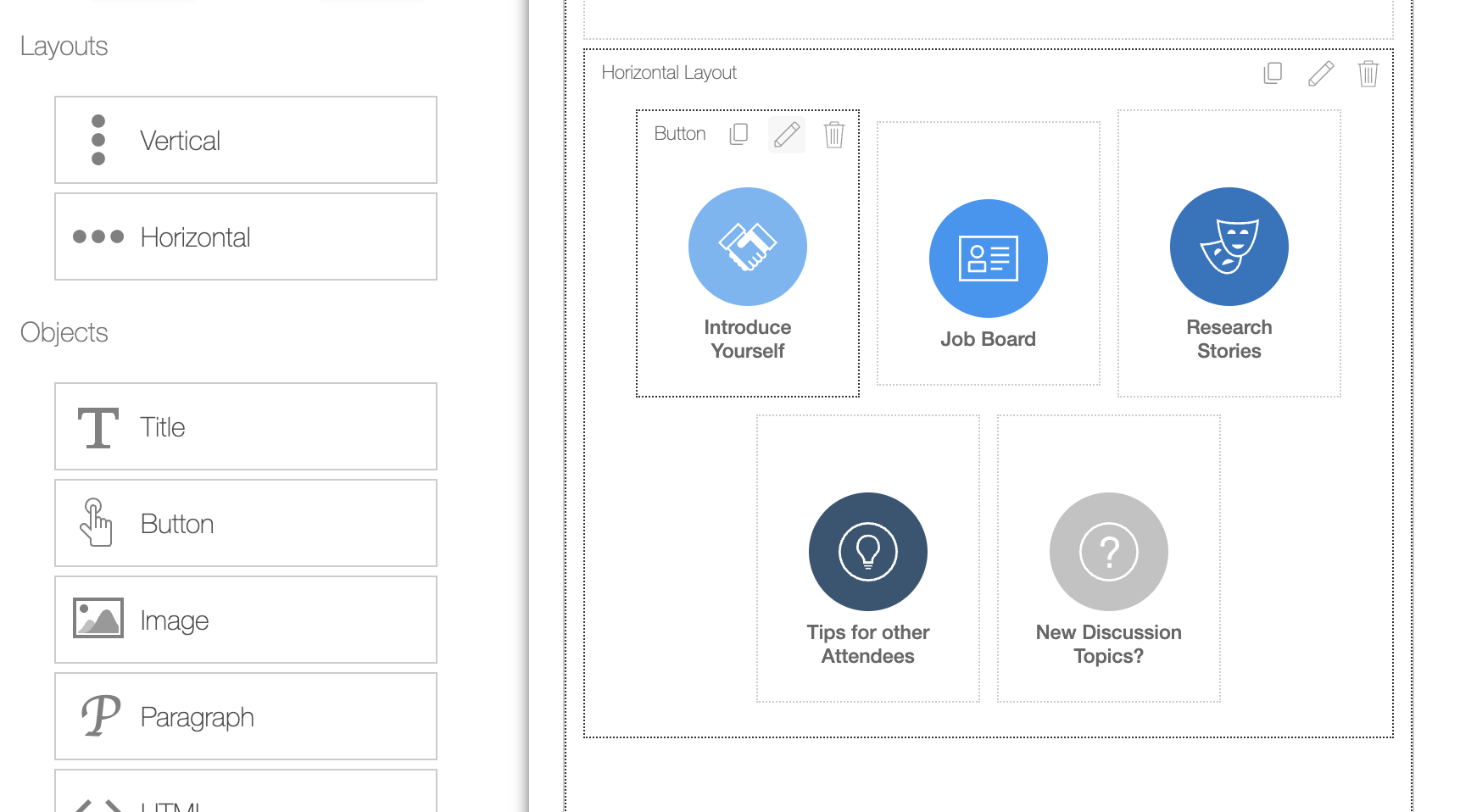
- Search for Community Chats and click the pencil icon
- In the custom view editor, you can edit any individual existing button, add new buttons to new topics, add detail about etiquette, add sponsor images etc.
Related articles:
- How do I use the Custom View Builder or Home Screen Builder?
- How do I use the Action Builder? What do the options mean? What can my button or tab do?