Cadmium API - Before Getting Started
In order to set up a Cadmium import, you will need to provide the API Key for each of the Cadmium products you are using and wish to import data for:
- Scorecard
- Education Harvester
- Conference Harvester
Once you have received the details, provide those to your project manager at ATIV in order to set up an API import. Additional development fees may apply.
The project manager will then set up data import sources generally in the following areas in the Conference App Builder :
Agenda for session data
Speakers for presenters
Media for abstracts
Once the import sources are set up, your project manager can add an auto-import / publish option. You can edit the daily schedule for auth-import publish directly in the Conference App Builder Home Screen.
Agenda Sessions Import
Your project manager will set up the import source for you. Once set up, you can adjust the field mapping as needed and pending your Cadmium setup, you may have different additional fields you could import as filters. Click the pencil icon next to the import source to review or edit field mapping.
Typical field mapping may look like this:
- Session ID > Session ID
- Session Title > Session Title
- Speaker ID > Speaker ID
- Session Description > Description
- session number > Session Number
- Date > Date
- Start Time > Start Time
- Stop Time > End Time
- Location > Location
- Session Type > Session Type
- Parent > Parent Session
- media > Media Items (typically full text abstracts)
- The following may appear in your custom implementation and are generally custom fields in Cadmium. They could be mapped to filters to be used as keywords:
- Category
- Pathways
- Topic
- Theme
- CEHours
- CME Filter
These fields could have custom labels in your Cadmium implementation.
Speakers Import
Typical field mapping:
- id > Speaker ID
- first > First Name
- last > Last Name
- title > Title
- if you do not collect a title but degree instead, you can field map degree > Title
- bio (could be labeled description) > Bio
- org > Organization
- email > Private Email
- photo > Photo
Ignore (do not import) the source field.
Media (Abstracts)
Typical field mapping:
- id > Media ID
- title > Title
- The PresentationTitle is prefixed with the PresentationNumber
- subtitle > Subtitle (this is generally hard coded to "View Abstract")
- description > Description
- This is the AbstractText
- type > Media Type (hard coded to "int/html")
- associated_session > Session ID
- This links the abstract back to the presentation
- associated_speakers > Speaker ID
- This links the abstract to the speakers. This means, app users can view abstracts directly from a speaker's detail view.
- category > map this to Filter 1
- This field may be customized for you as it links to one of the CustomPresField## in the Cadmium API. You may see a custom label for this field in Cadmium.
FAQ
Can the Cadmium data be updated automatically each day?
Yes. An automatic import and publish can be set up for your Cadmium event data. You can adjust the schedule directly from the Conference App Builder Home Screen.
Is there a delay between updating my data in Cadmium and importing the updated content?
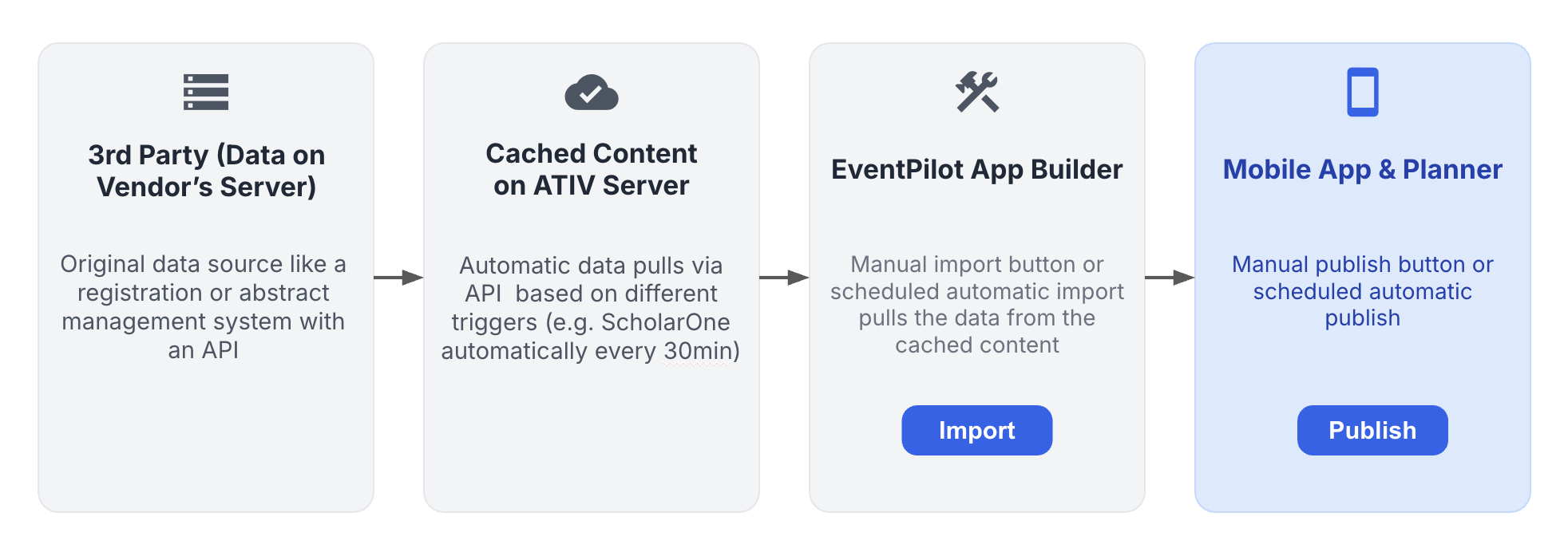
Depending on your custom implementation, there may be a short delay. EventPilot caches Cadmium data to improve import speed and reliability, since Cadmium data pulls can be large and are processed in chunks. When you run an import, the import uses the cached Cadmium content. In most implementations, that cache is refreshed about once per hour to pick up changes from Cadmium.
I have a record in Cadmium, but it is not importing. Why?
Common reasons include:
- The Cadmium cache has not refreshed since the record was added or changed.
- The record is inactive, hidden, unpublished, or otherwise excluded by your custom import rules.
- Required fields such as title, date, time, or ID are missing.
- The record type is not part of your EventPilot import configuration.
- The record is a child presentation but its parent/session relationship is missing or incomplete.
- The speaker/presenter is not linked to an imported session or presentation.
- The content is stored in a Cadmium custom field that is not mapped for your implementation.
Which Cadmium fields determine whether a speaker imports?
Speakers are usually imported only when they are attached to an imported session or presentation.
Common fields involved include:
- PresenterID
- PresenterFirstName
- PresenterLastName
- Presenters list on the presentation/session
- PresentationRosterRole
Some implementations exclude certain roles, such as alternate presenters, co-authors, or session coordinators. The exact role rules depend on your event configuration.
Why is my speaker in Cadmium but missing from EventPilot?
Usually, this happens because the speaker is not linked to an imported session or presentation, or their role is excluded by the import configuration. Check that:
- The speaker is attached to the correct session/presentation in Cadmium.
- The session/presentation itself is importing.
- The speaker has a valid PresenterID.
- The speaker’s role is one that your EventPilot import includes.
- The Cadmium cache has refreshed since the speaker was added or changed.
One of my sessions is canceled before I launched the event app. How do I remove it from the data import into EventPilot?
The import checks the Active field. Toggle this session to Inactive before the next data import into EventPilot.
I have deleted a session in Cadmium but it still appears in the app?
Due to rate limiting, data must be cached on our server. Ensure you do not delete session in Cadmium but first set them to inactive. This lets our system to remove that session from cache. If you delete it directly in Cadmium, there is no flag that the session had been deleted and our system would have no knowledge to remove it.