ScholarOne API - Before Getting Started
Use the ScholarOne API import to bring sessions, speakers, and abstracts into the Conference App Builder. ScholarOne imports are usually set up as separate import sources for each table, so each data set can be mapped and reimported independently.
Before setting up the import sources, contact ScholarOne and request the following:
- API Username
- API Password
- Site Name
Once you have received the details, you can set up import sources in the Conference App Builder.
Access the menu item where you would like to import data:
- Agenda for session and presentation data
- Speakers for presenters, chairs, hosts, and co-authors when included
- Media for abstracts
Setting Up the Initial Data Sources and Running the Initial Import
Speakers
- Access the Conference App Builder. From the ATIV website, choose Organizer Login > EventPilot.
- Select your project.
- Navigate to Agenda > Speakers.
- Click Add Import Source. You may need to expand the import card before this button is visible.
- Enter a logical name for the source, for example S1 Speakers.
- Select ScholarOne from the Source dropdown.
- Select Next.
- As prompted on the screen, enter:
- API Username
- API Password
- Site Name
- If you have used import customizations in the past, ask your ATIV Project Manager to add your Customization Code, generally your ORG ID in the App Builder.
- Only use Custom Import Parameters if ATIV gives you a value to enter.
- Set the speaker-specific options:
- Include Co-authors: select Yes if co-authors should also be imported as speaker records. Select No if only presenters and session hosts should be imported.
- Valid Invitation Statuses, if available: leave blank to use the default accepted-speaker behavior. Add exact ScholarOne invitation status values only when people with additional statuses should be imported or linked, such as Incomplete Accepted. If you use this field for speakers, use the same values in the Agenda > Sessions import setup.
- Select Next.
- Mapping
Complete the field mappingfor the table. Common mappings include:- id > Speaker ID
- first_name > First Name
- last_name > Last Name
- title > Title
- degree > Degree
- institution > Organization
- country > Country
- email > Private Email
- bio > Bio
- media > Media Items
- roles > Filter or Metadata field, if you want users to filter speakers by role
- Select Next to run the import.
- If there are errors in your data, review Common Conference App Builder Import Data Errors and Import Exclusion Reasons.
Sessions
- Navigate to Agenda > Sessions.
- Click Add Import Source. You may need to expand the import card before this button is visible.
- Enter a logical name for the source, for example S1 Sessions.
- Select ScholarOne from the Source dropdown.
- Select Next.
- As prompted on the screen, enter:
- API Username
- API Password
- Site Name
- If you have used import customizations in the past, ask your ATIV Project Manager to add your Customization Code, generally your ORG ID in the App Builder.
- Only use Custom Import Parameters if ATIV gives you a value to enter.
- Set the session-specific options:
- Display Authors: select Yes if you want presentation author names displayed in child session descriptions.
- Display FinalID: select Yes if the ScholarOne finalId should appear before child session titles, for example <finalId>: <title>.
- Display Session Abbr.: select Yes if the ScholarOne sessionAbbr should appear before parent session titles.
- Show Location: select Yes if the location should also appear in the session description.
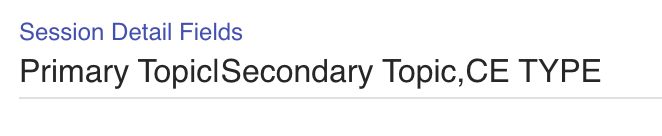
- Session Detail Fields: enter exact ScholarOne session detail field names if you need custom fields to become available for mapping. Separate fields with commas.
- Say you have two separate session detail fields for primary and secondary topic, but you want to use just one "Topic" filter in the app that has both the primary and secondary keywords. You can do this by writing the fields pipe-separated to combine multiple ScholarOne fields into one output column, for example Primary Topic|Secondary Topic,CE TYPE. This tells the system to import Primary and Secondary Topic together as one column, and CE TYPE as a separate column.
- Valid Invitation Statuses, if available: leave blank to use the default behavior, which only treats Accepted invitation statuses as valid for linked presenters and session hosts. Add exact ScholarOne invitation status values only when additional statuses should be allowed, such as Incomplete Accepted. If you use this field in the Agenda import, repeat the same values in the Speaker import setup so the same people are imported as speaker records.
- Select Next.
- Mapping
Complete the field mappingfor the table. Common mappings include:- sessionId > Session ID
- sessionNumber > Session Number
- parent > Parent Session
- title > Session Title
- description > Description
- sessionType > Session Type
- sessionTrack > Track or Filter field
- date > Date
- start > Start Time
- stop > End Time
- location > Location
- speakers > Speaker ID
- media > Media Items
- Any fields added through Session Detail Fields > the appropriate filter or metadata fields
- Select Next to run the import.
- If there are errors in your data, review Common Conference App Builder Import Data Errors and Import Exclusion Reasons.
Abstracts (Media)
- Navigate to Media > Media Data.
- Click Add Import Source. You may need to expand the import card before this button is visible.
- Enter a logical name for the source, for example S1 Abstracts.
- Select ScholarOne from the Source dropdown.
- Select Next.
- As prompted on the screen, enter:
- API Username
- API Password
- Site Name
- If you have used import customizations in the past, ask your ATIV Project Manager to add your Customization Code, generally your ORG ID in the App Builder.
- Only use Custom Import Parameters if ATIV gives you a value to enter.
- Set the media-specific option:
- Include Abstract Buttons: select Yes if abstracts should include View Presentation and Add to Schedule buttons. This is useful for LITE projects or projects that do not allow schedule modification.
- Select Next.
- Mapping
Complete the field mappingfor the table. Common mappings include:- mediaid > Media ID
- sessionid > Session ID
- title > Title
- type > Media Type
- description > Description
- url > URL
- icon > HTML Icon
- category > Filter 1, if you want attendees to filter by abstract category
- sbucategory > Filter 2, if you want attendees to filter by abstract subcategory
- defaultFilter > Filter or Media Type filter, if needed
- subtitle > Subtitle
- session_type > Filter field, if you want attendees to filter abstracts by parent session type
- session_track > Filter field, if you want attendees to filter abstracts by parent session track
- Select Next to run the import.
- If there are errors in your data, review Common Conference App Builder Import Data Errors and Import Exclusion Reasons.
Incremental Imports after Setup
- Return to the Conference App Builder and open your project.
- Choose one of the available import options:
- Import all at once: select the Home menu, then select Import All Data.
- Import one data set: visit that page of the Conference App Builder, for example Agenda > Sessions, and choose Import All [Agenda].
- Import one source only: visit that page of the Conference App Builder, expand the import card if necessary, and select the Import button beside a single data source.
If you manually import individual sources, import all related sources, such as sessions, speakers, and media, to avoid orphan errors.
- If there are errors in your data, review Common Conference App Builder Import Data Errors and Import Exclusion Reasons.
- Select the Publish menu on the top left and select Publish to Proof.
- After reviewing your data update in the proof version on iOS and Android, select Publish Live Data.
FAQ
Why is certain data displaying in this field? I am seeing something unexpected.
Please contact your project manager for full details on how the fields in the ScholarOne API populate fields in the EventPilot Conference App Builder.
The Session Notes field in ScholarOne is pulled in as part of the session description in EventPilot.
I made an update in ScholarOne and imported right away, but the changes are not appearing. Why?
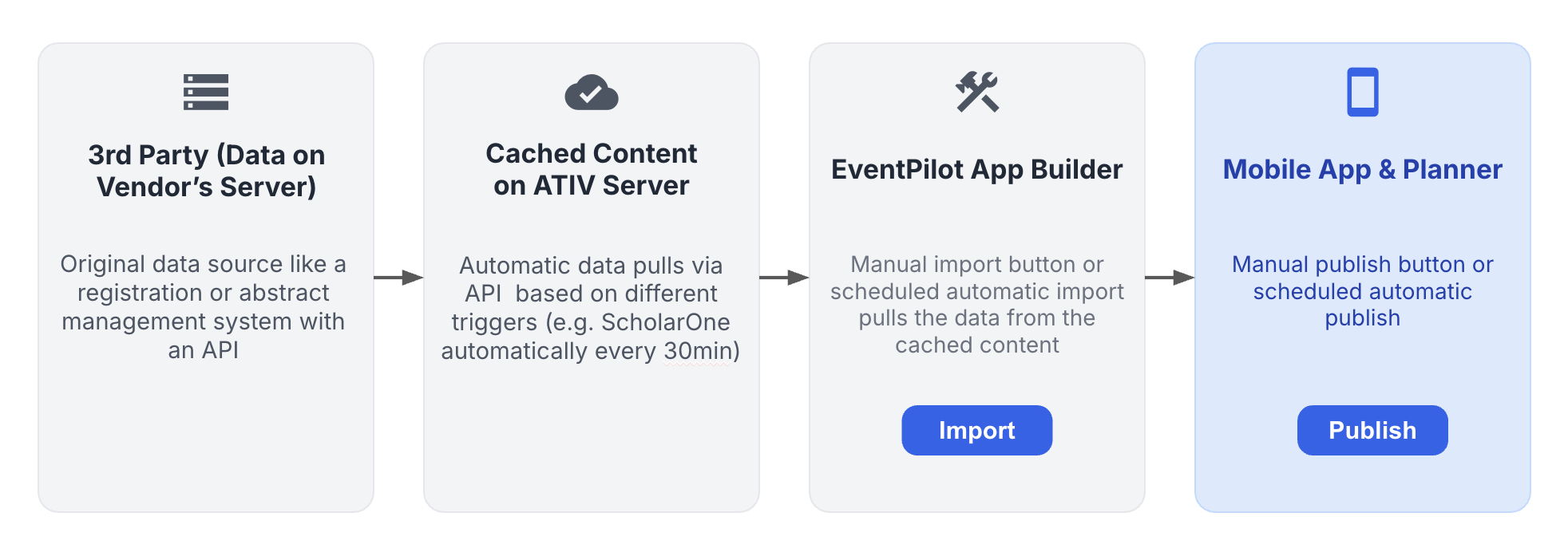
There may be a delay of up to 30 minutes because the ScholarOne API has a strict rate limit and requires content caching. If you need a change to appear in the app as soon as possible, you can also manually edit the record in the Conference App Builder.
How do I know the ScholarOne cache status? When was the cache updated last?
In the Conference App Builder, access Agenda > Sessions. Open the import card to see your S1 API import source. Click the pencil icon and access the second step called Data. It displays the date and time of the last cache update.
What triggers which sessions or presentations are imported into EventPilot from ScholarOne?
The import checks the Include in IP field, also called inIP, and the session scheduling.
- If the session is scheduled and Include in IP is toggled on, the session will import.
- If Include in IP is toggled off, the session will not import.
- If the session does not have dates and times and is not specified as an OnDemand session, it will not import, even if Include in IP is toggled on.
What triggers which presenters or session hosts are imported into EventPilot from ScholarOne?
By default, speakers are only imported or linked if their ScholarOne invitation status is Accepted.
If your event needs to include presenters or hosts with another invitation status, such as Incomplete Accepted, add that exact status to Valid Invitation Statuses in the Agenda > Sessions import setup and repeat the same value in the Agenda > Speakers import setup when the field is available. This keeps session links and speaker records consistent.
Child session presenters are only imported if presenter = true.
What happens if presentations are marked as withdrawn?
Withdrawn presentations are imported into the program with a (W) prefix in the title. If your project is already live with active attendees, avoid removing sessions by turning off Include in IP. Deleting sessions can confuse users who already added them to their personal schedules. The (W) indicator shows that the session was withdrawn rather than missing.
The description field for withdrawn presentations is cleared and replaced with this text: This presentation has been withdrawn. The full abstract is removed, and the associated speakers are cleared from the presentation.
If you set the presentation duration to 0 minutes for a withdrawn presentation, the presentation is excluded from the Agenda > Sessions import while the abstract is still imported in the Media import.
One of my sessions is canceled before I launched the event app. How do I remove it from the data import into EventPilot?
The import checks the Include in IP field, also called inIP, and the session scheduling. Toggle Include in IP off before the next data import into EventPilot.
I am getting an import error with \" in my data. What should I do?
Your authors may have entered "{o}, which is LaTeX notation for producing ö. This escape sequence can produce \"{o} during import. Correct the data in the submission portal and replace "{o} with the letter ö.
Is the session ID in the import the same as Control ID in ScholarOne?
Yes.
For sessions or presentations that start at the same time, how do I control the sort order?
Map the sessionNumber field. Learn more about sort order in this article.
One of my session chairs is not appearing in the session. Why?
This can happen, rarely, when the ScholarOne session hosts' order is set to the same value. If multiple records have the same order, they can overwrite each other. Confirm that each record has a unique order value, such as 1, 2, 3, and so on.
I deleted a session in ScholarOne, but it is still showing in the app. Can it be removed from cache?
To remove a session, use the Include in IP field. This allows the API to tell EventPilot that the session should no longer be imported.
If you delete a session in ScholarOne, the API no longer has details about that session. In that case, contact your Project Manager to manually remove the session from cache. Provide the session ID and session title of the deleted session. For DIY projects, there may be an additional fee to manually remove deleted sessions.
Why does the import come from a cached dataset instead of directly from ScholarOne?
Because the ScholarOne API has a strict rate limit, it is not efficient to pull the full dataset live at the time of import. Instead, EventPilot maintains a synced copy of the ScholarOne data on our server.
When you run an import, either manually or through automatic scheduled imports, you are importing the latest cached dataset. The cache is refreshed every 30 minutes, and changes in ScholarOne are applied during that refresh.
Can I assign a presentation to two sessions and still import?
No. A poster, abstract, or presentation must only be associated with a single parent session if you want to import the data. Each presentation has one single ID. If the same presentation needs to be included in a different session, duplicate the presentation in ScholarOne and assign the duplicate to the second session.