Overview
The visual schedule view (calendar view) organizes your ongoing sessions into blocks based on the time that they take place.
By default, the system creates these automatically, but you can also choose to create them manually.
Tapping a time block opens a list of the sessions within.
The visual schedule view helps attendees orient their personal schedule in the context of your meeting. For example, users may not realize you have a 6 am early morning yoga session when browsing the program as a list, but would notice it when checking their itinerary in the visual schedule view.
In addition, the visual schedule view helps your attendees identify gaps in their schedule and easily find sessions that take place during those gaps.

Personal Schedule
When users schedule sessions, they appear in full color on the visual schedule view and overlay the event's schedule at a glance.
Users can use the layer toggle to hide their personal schedule to see the event schedule at a glance.
EventPilot allows attendees to schedule as many concurrent sessions as they want. When looking at the schedule view on a typically-sized screen, attendees will be able to see up to 3 individual concurrent sessions, however, if an attendee schedules 4+ concurrent sessions the time block becomes one block for a better UI experience.


Controlling Time Block Generation
In the App Builder > Agenda > Visual Schedule, you can choose how many columns the system should generate. Depending on the complexity of your schedule, 2 to 3 is recommended.
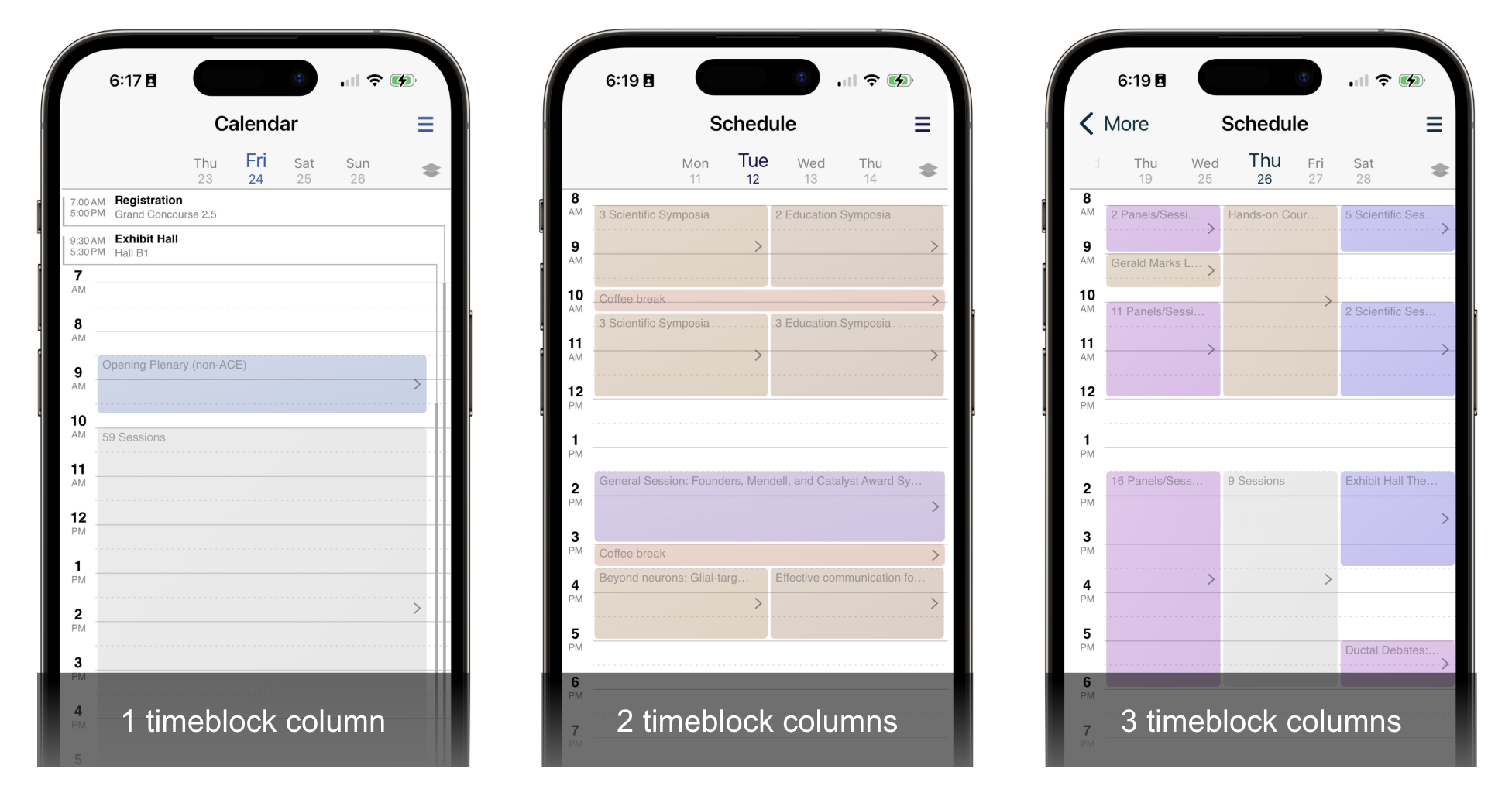
If you have selected 3 timeblock columns, the system will automatically start with the first session type and generate a column if one or more sessions exists.
Prioritizing Time Blocks
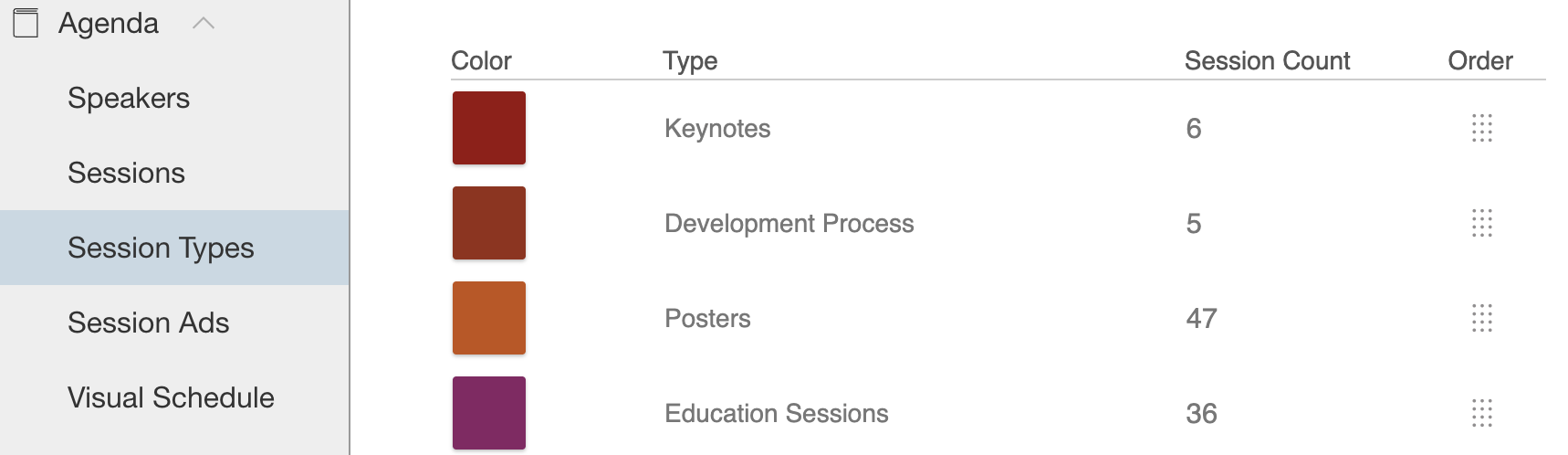
If you wish to ensure that one session type will always be displayed as its own block, drag the session type to the top in Agenda > Session Types.
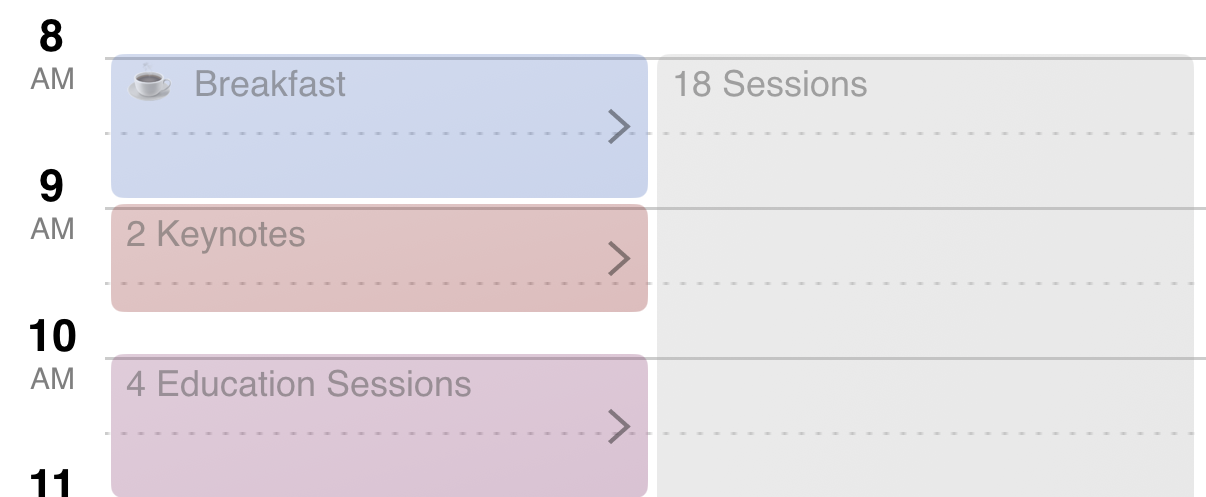
In the example below, the number of columns to display is set to 2. Keynotes, education sessions, and social events are higher in the Session Types list. Depending on what other sessions are going on at that time and the overlaps across sessions, blocks with a session type higher in the list are then displayed as their own blocks.
Day view in app
Session type order
Imagine you have the following program with many overlapping events
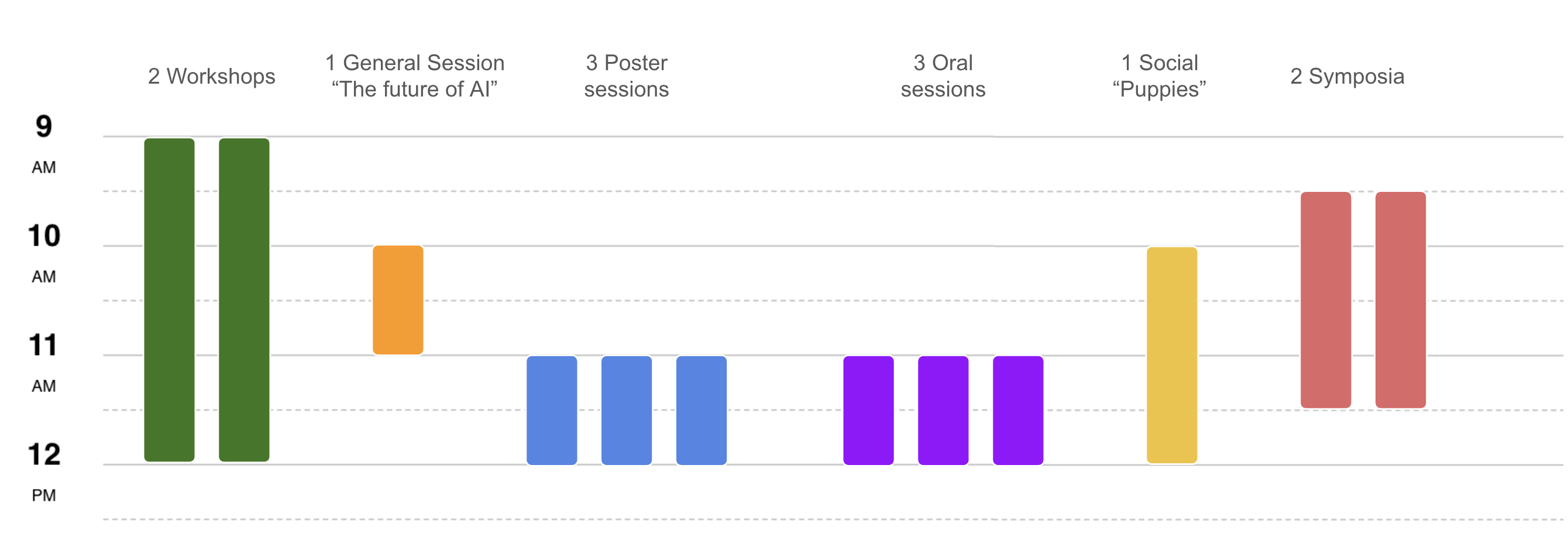
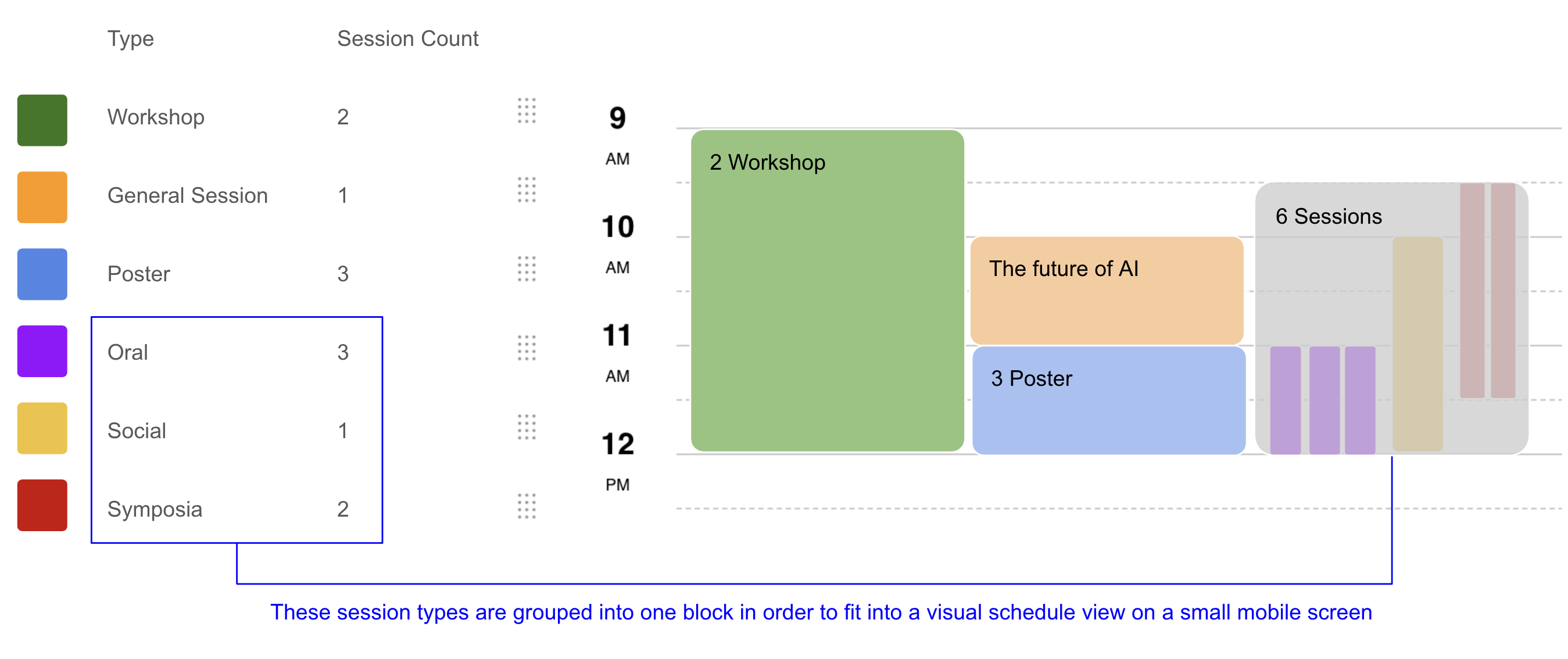
If you selected the 3 column option and the session types Workshop, General Session, and Poster are positioned on the top of your session type list, you would receive time blocks like the example below where the gray timeblock indicates the grouping of multiple session types with overlapping time blocks.
If there is a time block with a single session, the session title is displayed directly (in our example, the General Session block displays the title of the keynote "The future of AI".
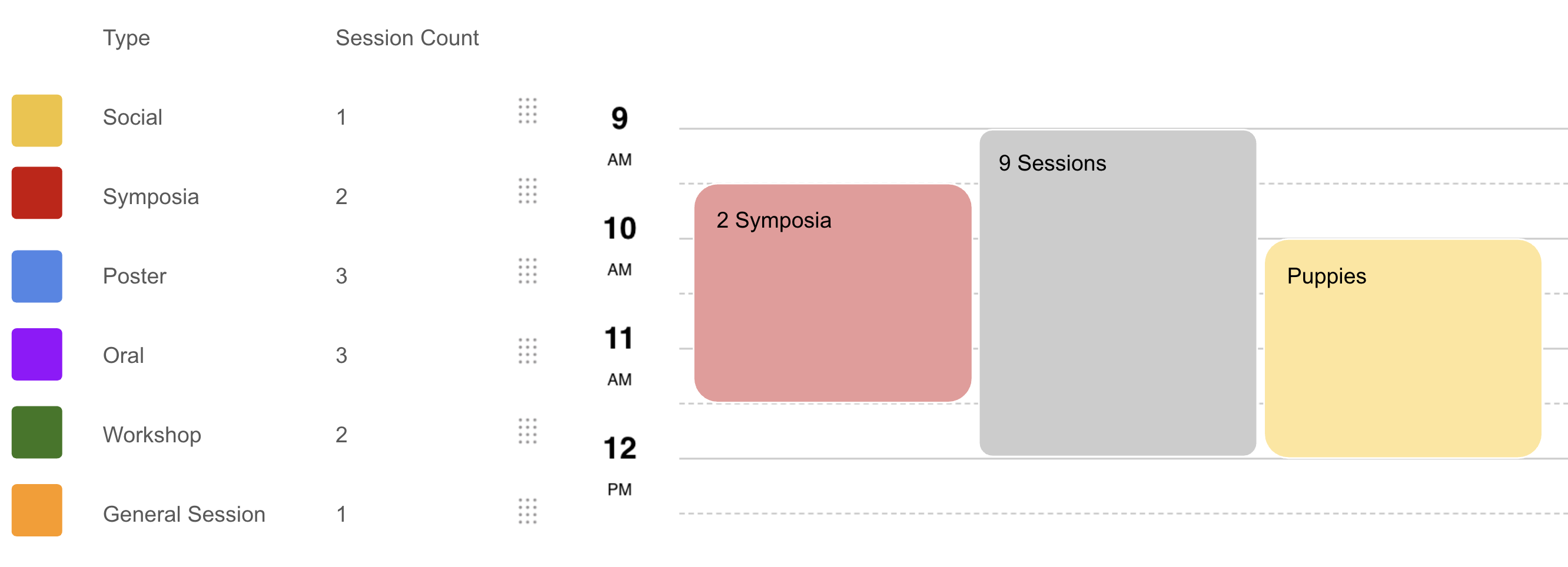
If you drag the session types Social and Symposia to the top, you would receive an even larger grouped gray block as all of the other session types overlap.
Note: after changing the order of session types, new time blocks get generated when you publish to proof or live.
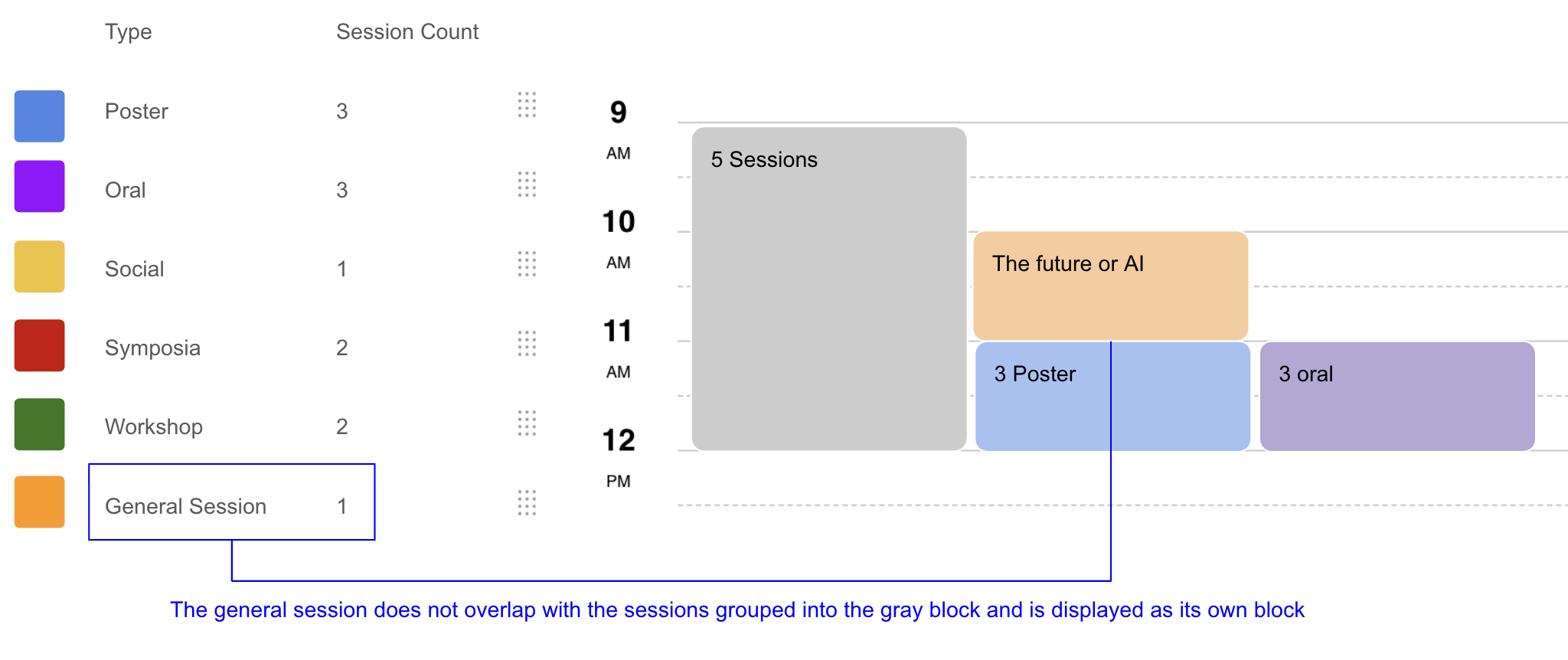
If sessions within the same session type are not overlapping other types (e.g. in our example the "General Session" type) and not all 3 columns are in use for that time slot, those sessions will display in its own block, even if it may be lower on the session type list. Since there is only one session in the block, the session title is displayed.
Related Articles
- How do I manually set up time blocks?
- Can I edit a timeblock title in the Conference App Builder and will the edits stay every time I do a new data import?