Audience: App Users
EventPilot conference apps offer a range of options to help you navigate the conference app and make the most out of the few days at the event.
AI Assistant: Your Instant Conference Concierge
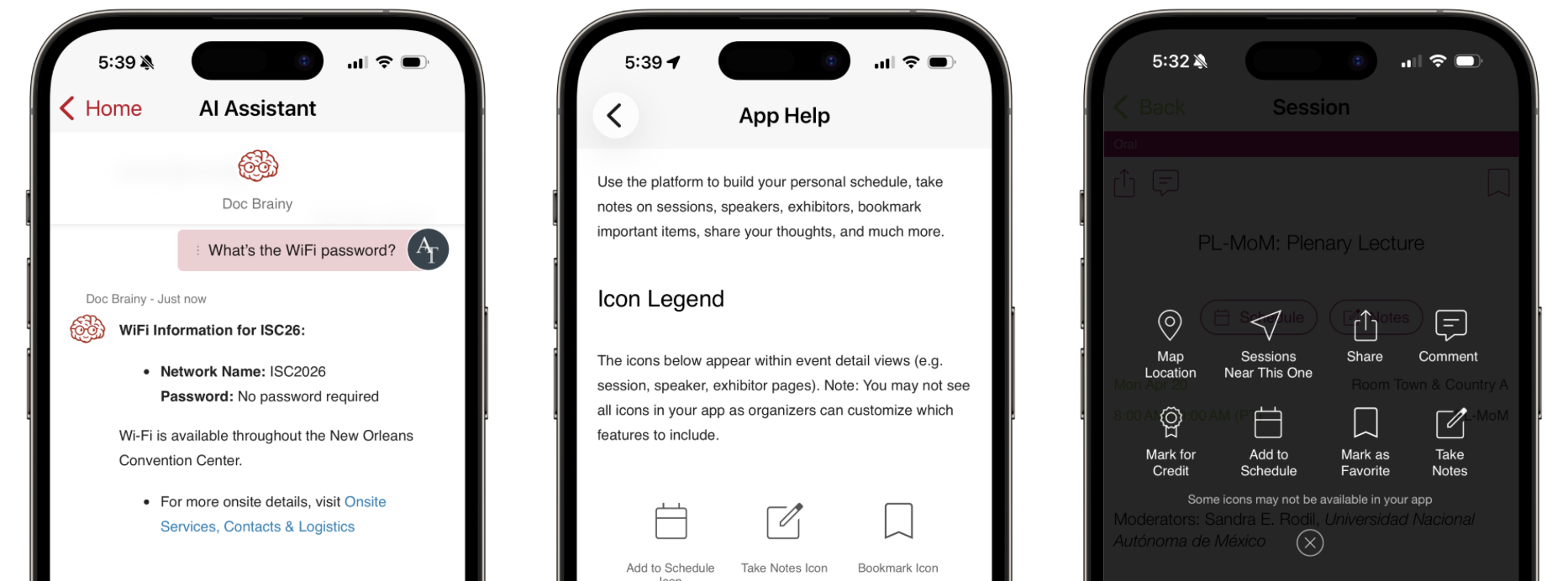
The quickest way to navigate the event is to simply ask. If your organizer has enabled the AI Assistant, you don't need to learn a new app or hunt through menus. Think of it as a personal concierge that knows the entire program, venue, and event policies by heart.
Why Use the AI Assistant?
Instead of searching through lists, you can get instant answers to common questions. Here is how it can help you:
- Registration: When is registration open? Where do I print my badge?
- Sessions: Are there sessions on robotic surgery on Tuesday?
- Your itinerary: What's next on my schedule? What do you recommend for me tomorrow at 10am?
- Locations: Where is lost and found? Where is registration?
- Dates and times: When is the keynote? How much time do I have before my next session?
- Speakers: Is Dr. Hamilton speaking? Is there someone speaking from the University of Washington?
- Exhibitors: What's the booth number for ATIV? Which exhibitors offer AI services?
- App features: How do I export my schedule? Is the Q&A anonymous?
- Policies and Guidelines: Am I allowed to take photos? What's the dress code?
- Logistics: Is there a shuttle to the hotel? What's the Wifi password?
No Learning Curve Required
Because the AI is deeply integrated into the conference app, it doesn't just give you text - it provides direct links to sessions and animated maps to show you exactly where to go. You don’t need to know how the app works; you just need to know what you’re looking for.
For best results, ask one question at a time.
Offline App Help
Every EventPilot conference app includes a built-in Event App Help page that works even when you are offline. This is your go-to resource for understanding how to get the most out of the event app.
You can typically find it by accessing the MORE tab within your conference app and then scroll down to Help or App Help.
What’s Inside the Event App Help?
Instead of searching through a manual, you can quickly find:
Icon Guide: Learn what the different icons and buttons throughout the app mean.
Mini FAQ: Get short, simple description on how to build your schedule.
Contact Information: Clear directions on who to reach out to for help:
Data or Content Questions: Who to contact regarding speaker info, session changes, or event details.
App Feedback: Who to contact if you have questions or suggestions regarding the event app itself.
Legal Info: Easy access to the Privacy Policy and Terms of Use.
Why This Matters
Because this guide is searchable and works offline, you can get answers even in areas with spotty Wi-Fi. It’s designed to be intuitive, so you can spend less time figuring out the conference app and more time enjoying the conference.
Help Overlays: Your Quick Icon Guide
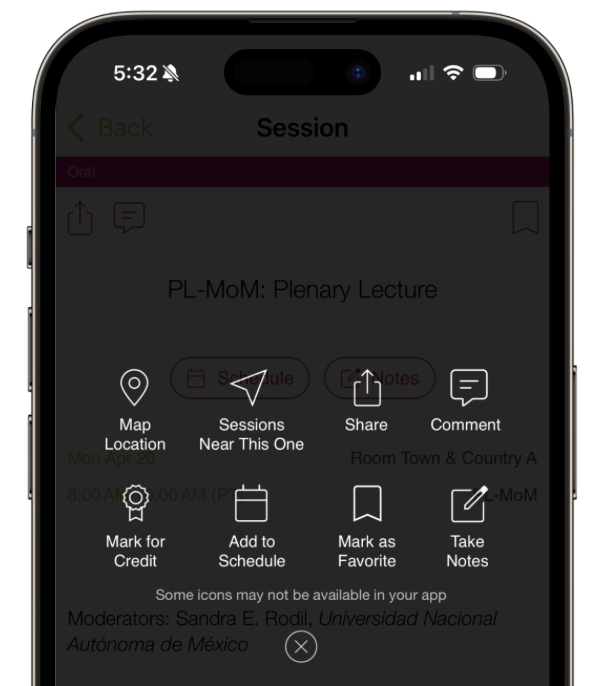 After loading an event into the app, the first time you open a session, a helpful Icon Legend will appear on your screen. This is a quick "cheat sheet" designed to show you what the different buttons and tools in the app mean.
Why some icons may not appear
While the legend shows you all the possible features the app offers in a session detail view, you might notice that a specific session doesn't display every single icon. This is because the tools available depend on how your event organizer has set up the conference.
For example:
Feature Settings: If the organizer has disabled session discussions, the "Comment" button will not appear.
Relevant Tools: Icons only show up when they are active for that specific session, keeping your screen clean and easy to navigate.
How to see it again
If you ever need a refresher on what an icon means, you can always find the full guide in the App Help section mentioned above.
Help Overlays: Time Saver Tip
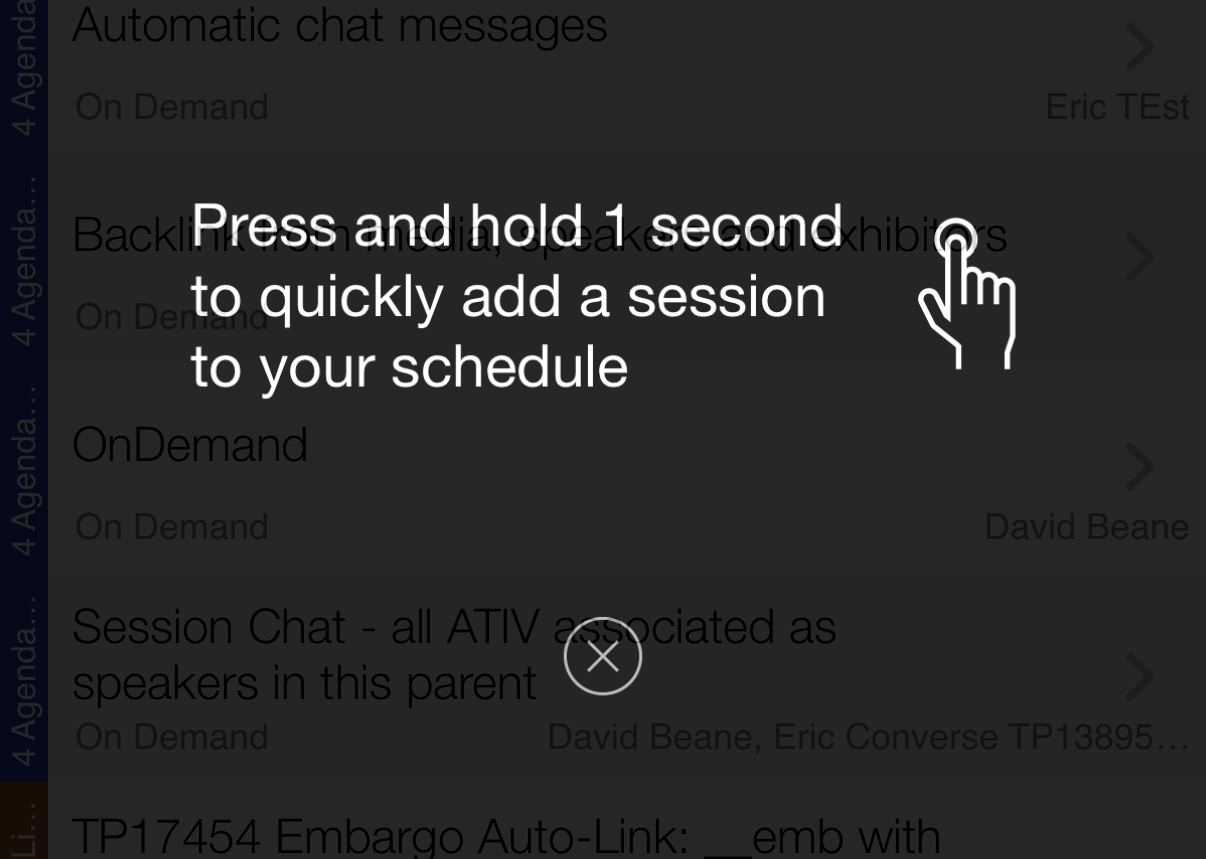
Once you have added a session to your schedule and return to a list view of sessions, you'll see time saver tip that allows you to quickly add sessions to your schedule: long press on a session.
In exhibitor and speaker list views, you can use the long press to bookmark that record.
24/7 Support Knowledge Base
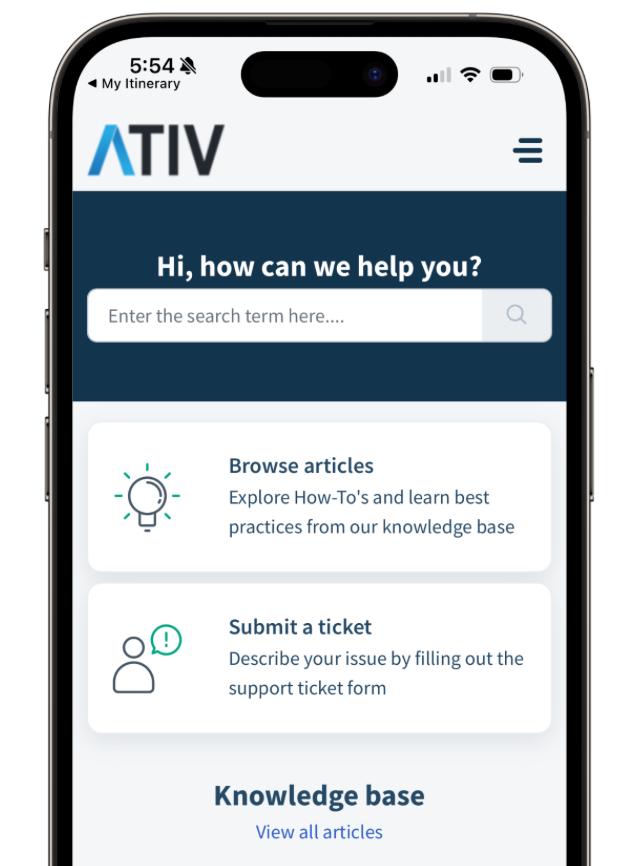
If you have a specific question that isn’t covered in the quick guide, you can access the full Support Knowledge Base right from your device. It is completely mobile-optimized, so you can read articles comfortably on a small screen.
How to Access Support:
In the app menu, navigate to More and then tap App Help (or Help).
What You’ll Find:
Our library includes everything from quick technical tips to detailed "how-to" guides, such as:
Battery Saving Tips: Learn how to make your phone last through a full day of sessions.
Exporting Your Schedule: Step-by-step instructions on how to sync your itinerary with your personal calendar.
Why This Helps:
By providing a searchable, mobile-friendly help center directly inside the app, we ensure that you have the answers you need exactly when you need them—no training videos or lengthy manuals required.