Audience: CMS Users, Integration Partners
Yes, you can add a button on your own website with a link that can add a session (or a group of sessions) to a user's schedule. Review the following to build the link.
1. Collect Project and Session ID Details
Collect the following information:
- Project ID - In the App Builder, look at the project name on top. To the right of the date field, you will see the Project ID (or click on your profile icon to open the drawer on the right. Your project ID is displayed).
- Shell Project ID - Contact your project manager to receive the correct shell project ID.
- Server domain - access your project in the App Builder and look at the URL field in your browser e.g. eppro01.ativ.me or eppro02.ativ.me
- Session ID(s) - In Agenda > Sessions > find the sessions you'd like to add buttons and copy the IDs. Use pipe | separator if you have multiple different IDs to add to someone schedule at once.
2. Prepare the JS and CSS
Host the two files attached to this article on your server and link to them in your page. Update the CSS to match your styling.
3. Add the individual buttons to your web page
Add the button in your html using this snippet:
<div class="ep-schedule-links"
     data-project="PROJECTID_HERE"
     data-app-project="SHELL_PROJECTID_HERE"
     data-web-entry-url="https://DOMAIN_HERE/web/index.php"
     data-session-ids="PIPE_SEPARATED_SESSIONIDS_HERE">

  <a data-ep-action="add_sched">
    Add sessions to my schedule
  </a>

  <a data-ep-action="rem_sched">
    Remove sessions from my schedule
  </a>

</div>
Imagine your project ID is ABC27, the domain is eppro01.ativ.me, and your session IDs are 12345 and 67890. In that case, you would update the HTML as follows:
data-project="ABC27"
data-app-project="SHELLABC"
data-web-entry-url="https://eppro01.ativ.me/web/index.php"
data-session-ids="12345|67890"
4. Link to the external web page from the app
If attendees will reach your external page from an app tab or button:
- Add a new button object to a custom view
- Use the ActionBuilder and click the gray bar on the left to overwrite the action with a manually created URN
- Enter the following URN with your link at the end (no https) urn:eventpilot:all:html:post:url=YOURURLHEREWITHOUTHTTPS
For example:
urn:eventpilot:all:html:post:url=www.ativsoftware.com/2026/09/how-to-include-a-link-to-add-a-particular-session-on-your-website/- depending on symbols in the URL, it may require to be base64 encoded
urn:eventpilot:all:html:post:b64url=YOURB64ENCODEDURL“=” values in the resulting Base 64 Encoded URL must be changed to ##EQUAL##
If your website is set up for auto login, append the following after the base 64 encoded URL
|action=login|username=++USERNAME++|password=++PASSWORD++|confid=++CONFID++
- depending on symbols in the URL, it may require to be base64 encoded
- Click Done
- Publish to proof and test the complete flow
. Test the link
- Publish the sessions and app changes to proof.
- Sign in to the proof app or webapp with a test attendee account.
- Confirm that the test sessions are not already in My Schedule.
- Open the external web page and select the add-to-schedule link.
- Return to My Schedule and confirm that every session in the URN was added.
FAQ
Can I try this in the demo app?
- Install the EventPilot Conference App from your app store
- Enter the access code EPDEMO
- Select the More tab on the bottom and scroll to Login / Settings
- Log in as george@ativ.me // test123
- Tap the Schedule tab - There are two keynotes today at 9am. Neither one should be on the schedule. If they are, select the sessions and click the Schedule button to remove from schedule.
- Once you confirm that neither keynote is on the schedule, select the More tab
- Scroll down to the tab called Web w/ Add To Schedule
- Click the button to open the third party web page
- On that page, there is a button for the EPDEMO project to Add and Remove sessions
- Select the Schedule tab on the bottom
- Both concurrent keynote sessions starting with the title "The Future of ..." have been added to your schedule (please remove those two sessions from the schedule after testing)
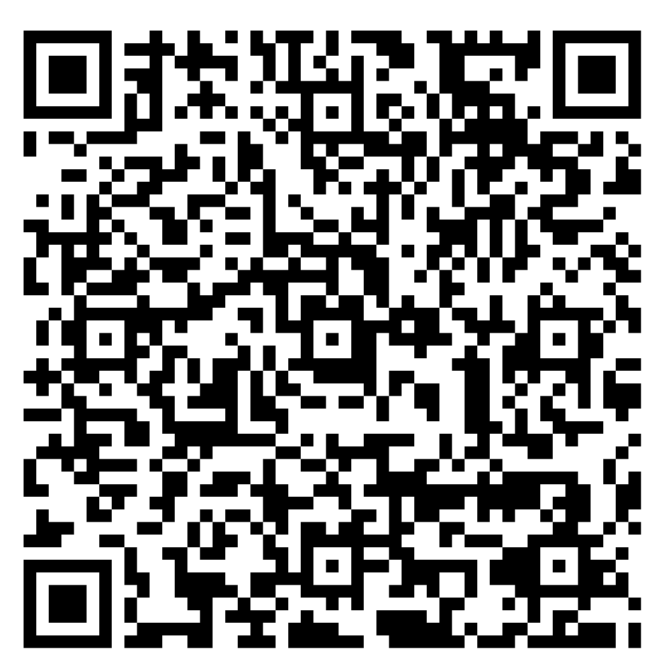
To test the app opening from the web link, scan this QR code on your phone (ensure you have the EventPilot conference app installed and the EPDEMO project downloaded)